
NVIDIA made a change in policy that pleased many PC gamers by starting to work on certifying AMD FreeSync monitors to work with NVIDIA GPUs. In this Windows 10 guide, we're going to run you through how to activate FreeSync on a monitor and use the technology to synchronize your PC output using an NVIDIA GPU.
Products used in this guide
- Amazon: ZOTAC RTX 2060 ($350)
- Amazon: AOC G2590FX ($329)
How to activate FreeSync support on NVIDIA GPUs
Firstly, make sure you've connected the display to your GPU using DisplayPort and not HDMI.
- Activate FreeSync on your display, using on-screen controls.
- Right-click NVIDIA logo on your Windows 10 taskbar.
- Choose "NVIDIA Control Panel".
-
Choose "Change resolution" on the left menu.
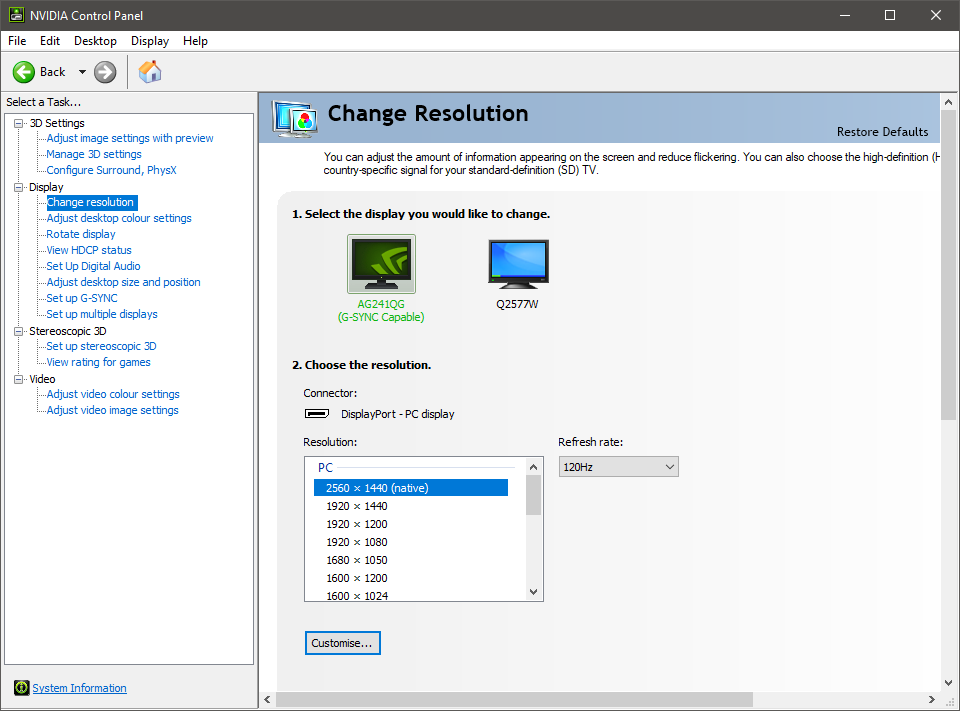
- Set the highest refresh rate for the FreeSync monitor.
- Choose "Set up G-Sync" on the left menu.
-
Check the "Enable G-Sync" for the FreeSync monitor.

from Windows Central - News, Forums, Reviews, Help for Windows 10 and all things Microsoft. http://bit.ly/2UeCsb9
via IFTTT

No comments:
Post a Comment